TikTok LIVE Studio Interface and Control Panel Explained
2026-03-07
TikTok LIVE Studio Interface and Control Panel Explained
The first time you open TikTok LIVE Studio, the interface can feel heavier than mobile streaming. That is normal. LIVE Studio is built to give desktop creators more control before and during a stream, so the interface centers on preparation, monitoring, and quick adjustments.
If you understand the main interface and control panel early, the rest of the product becomes much easier to learn.
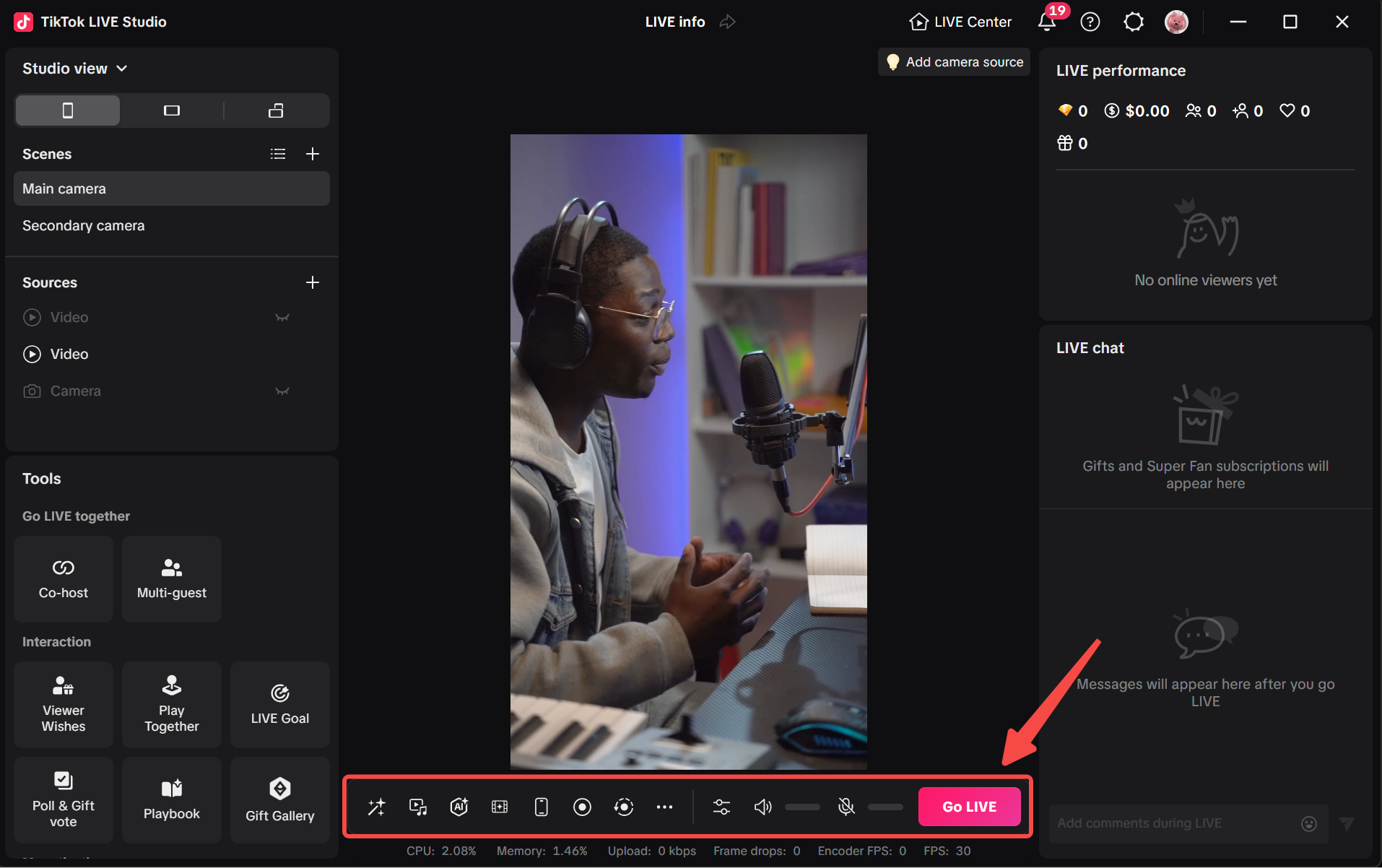
What the Main Interface Is Trying to Do
The main interface lets creators monitor both production quality and LIVE operations. It is not just a preview window. It is the command center for:
- stream settings
- preview monitoring
- chat management
- recording
- effects and audio tools
That means the most useful way to learn the interface is by function, not by memorizing every button individually.
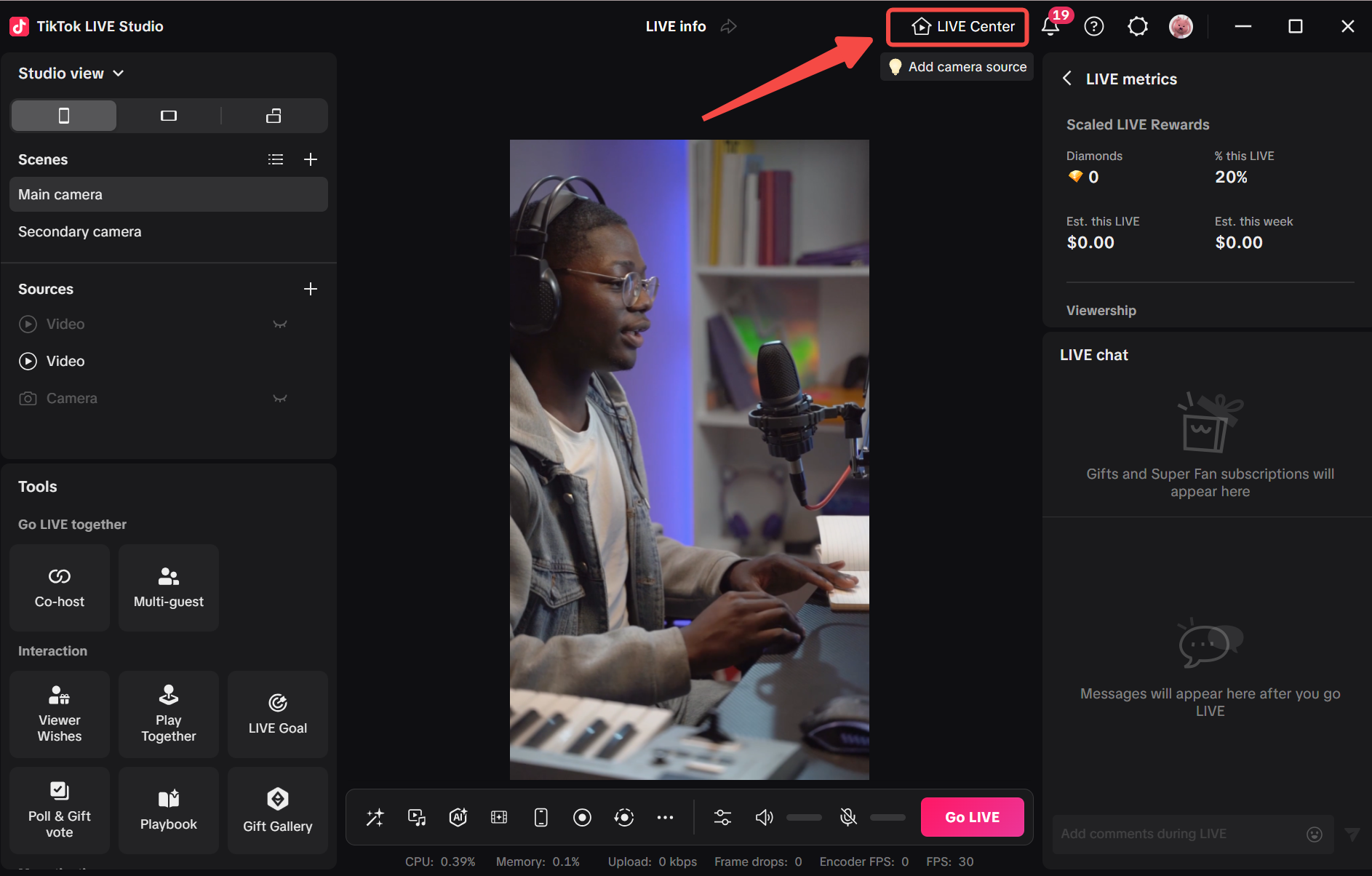
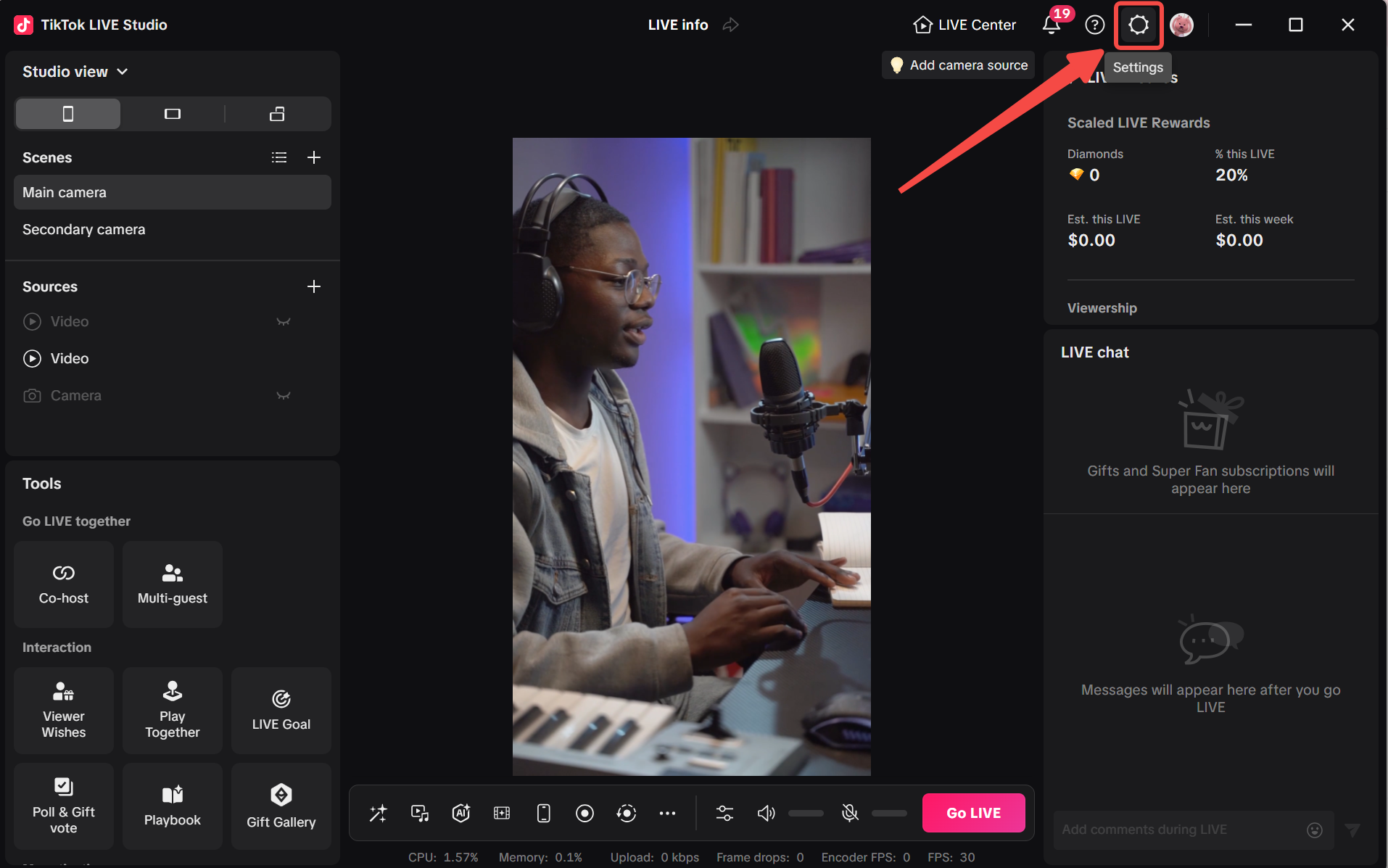
Near the top and right side of the interface, creators can also reach areas such as LIVE Center and Settings, which matter once you start reviewing performance data or changing stream behavior beyond the immediate control strip.
System and Quality Indicators
One of the first interface concepts in the guide is system awareness. It explains the meaning of:
- CPU usage
- memory usage
- GPU usage
- upload kbps
- FPS
- frame drops
- encoder FPS
- resolution
- bitrate
- encoder choice
This matters because LIVE Studio is not just about layout. It is also about performance. The interface helps creators judge whether their machine and settings are strong enough for stable streaming.
Recommended operating guidelines include:
- keeping CPU usage below 80%
- aiming for HD settings such as 1080p and 30 FPS when possible
- keeping stream settings aligned with real upload bandwidth
LIVE Info Settings
LIVE info is the information you customize before going LIVE so your topic is clearer and more appealing to viewers.
The key pieces include:
- topic
- cover image or auto screenshot
- title and introduction
- video quality settings
- visibility options such as Super Fan-only access
- audience control settings
One important note is that LIVE info cannot be edited while streaming. That means the interface is designed to encourage preparation before you go live, not last-minute improvisation.
What the Control Panel Is For
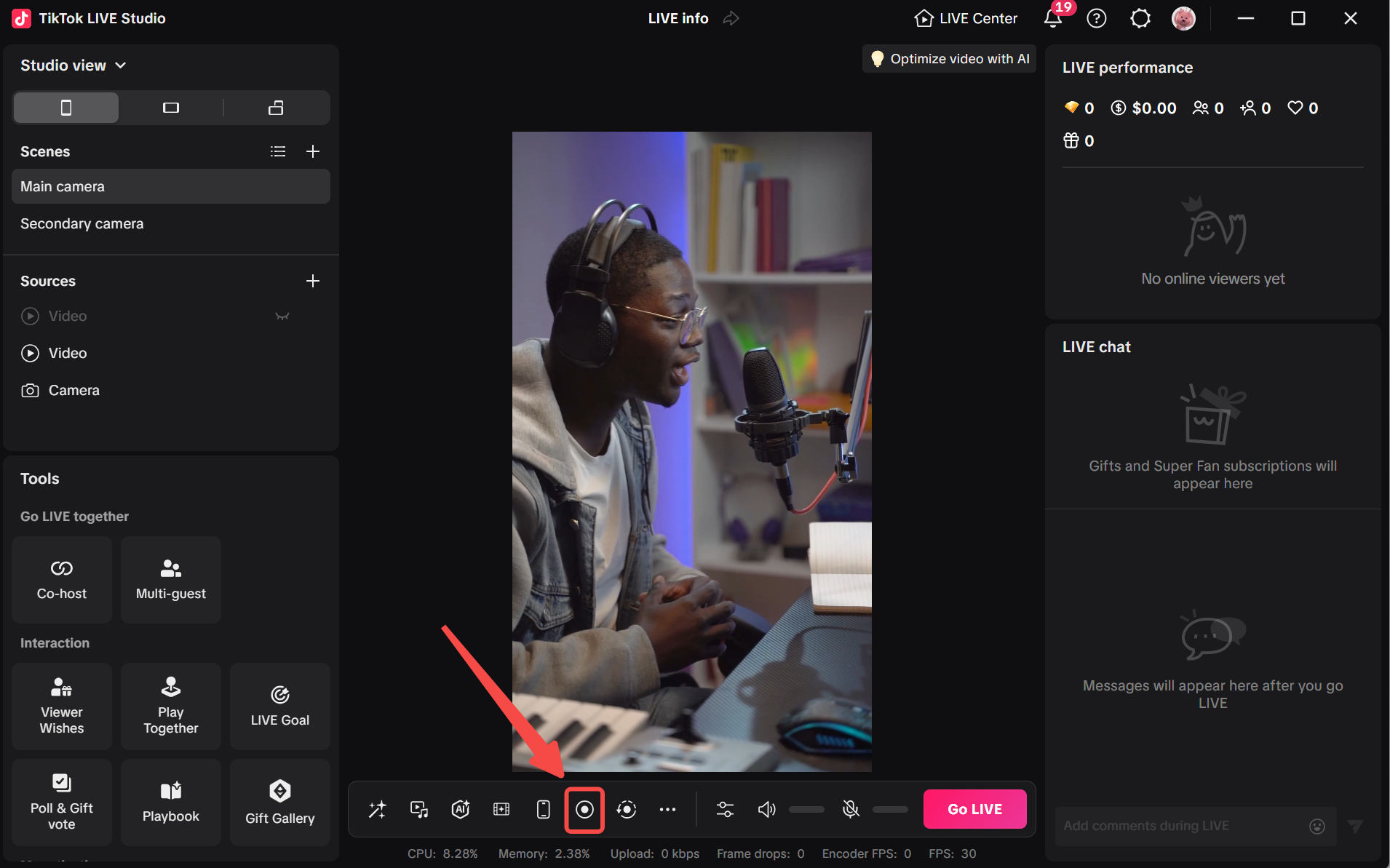
The control panel is a quick-access area that lets you instantly manage:
- makeup and filters
- LIVE effects
- sound effects
- recording
- audio settings
This is one of the biggest differences between a casual streaming experience and a desktop-oriented creator workflow. Instead of digging through menus, the control panel is meant to reduce friction during the stream itself.
Effects, Sound, and AI Tools
The control panel connects to several real-time tools.
Enhance and filters
Creators can quickly access makeup, LIVE effects, filters, ambience, and motion effects.
Sound effects
LIVE Studio includes built-in sound effects such as cheers and applause. You can also add your own effects and assign them to hotkeys.
AI optimize
An AI tool can analyze the camera view and provide suggestions about lighting, filters, and enhance settings.
Dynamic effect
This combines video filters, sound effects, and layout changes to create special moments during the stream.
Together, these tools show that the interface is not only for technical configuration. It is also built for performance and engagement.
Preview, Recording, and Monitoring
Preview and recording features are a major part of the workflow.
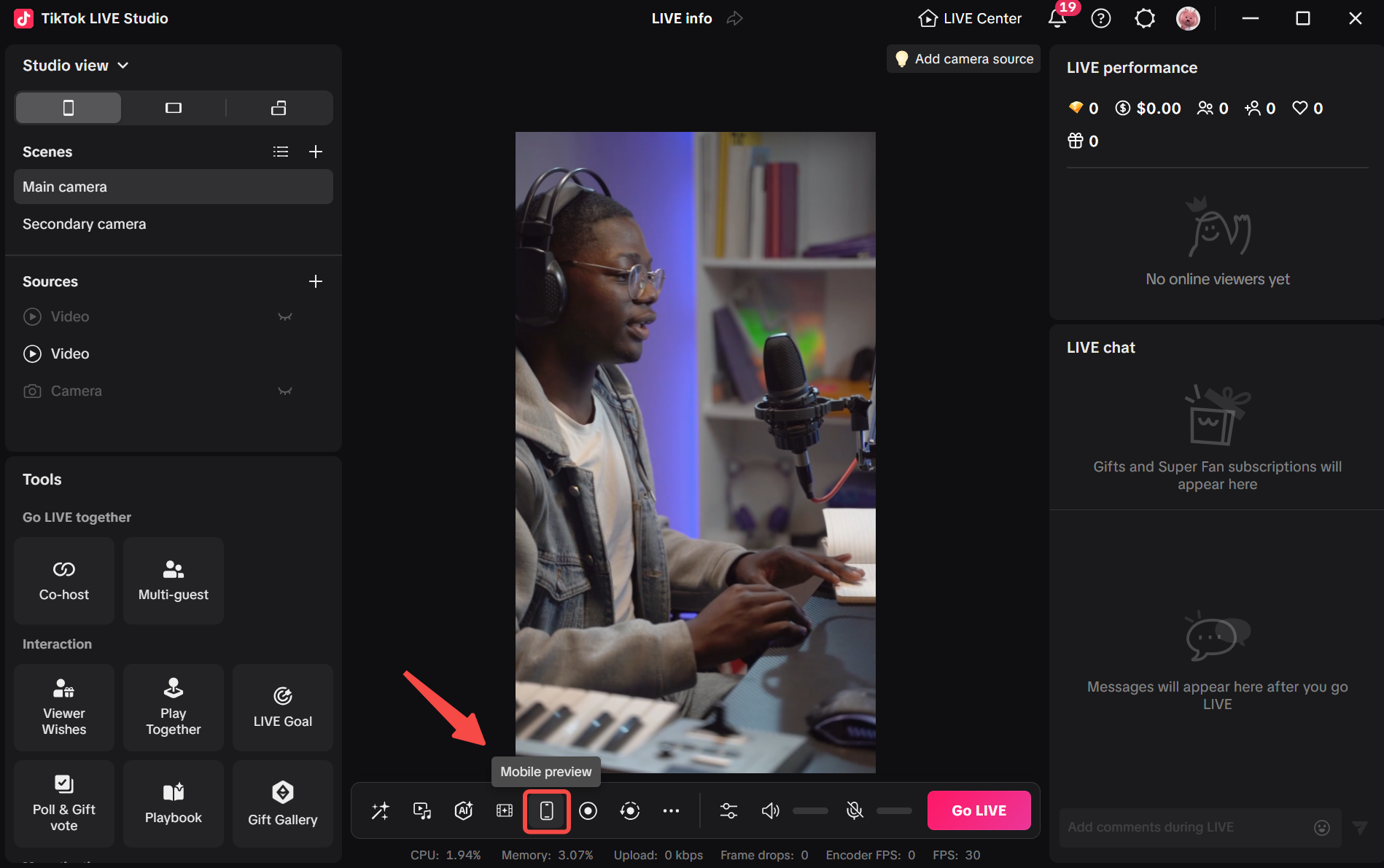
LIVE preview
The preview gives you an advanced view of the interface so you can adjust scenes and sources in real time and see what viewers will see.
You can also drag the preview to another monitor. This is especially useful if you want to watch framing while performing.
LIVE recording
During the stream, you can click record and save the LIVE video automatically to your computer. The save location can be changed in recording settings.
Highlight video
LIVE Studio can automatically capture key moments such as peak viewers, strong comment interaction, or big gifts. These highlights can then be posted to TikTok directly.
Chat, Moderation, and Floating Windows
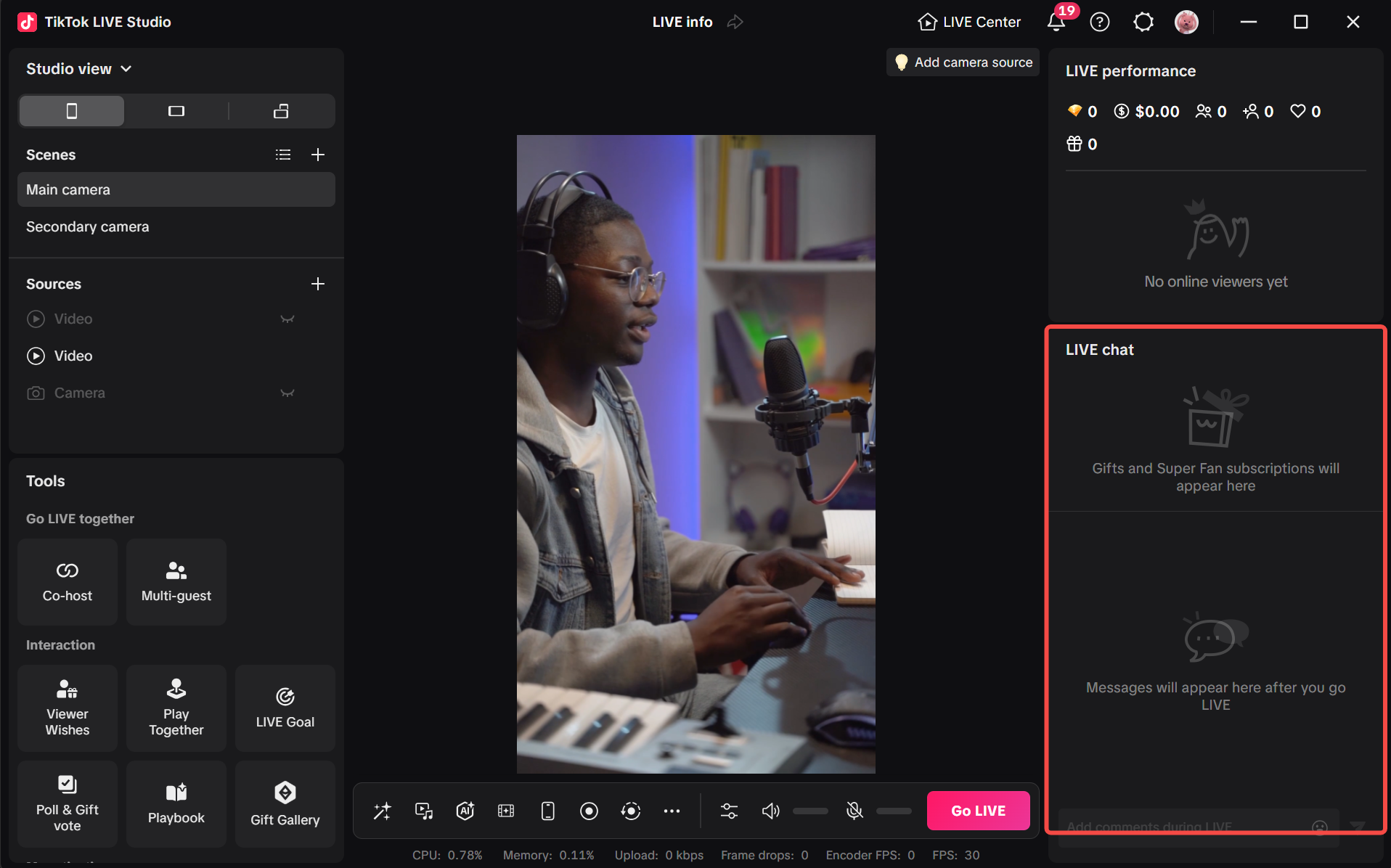
The interface also supports active chat management.
Creators can:
- view comments, gifts, and Super Fan messages
- pop out chat into a floating window
- resize chat sections
- configure message display rules
- turn on translation for comments not in the system language
- enable spam and offensive comment filtering
It also highlights moderators as separate accounts that help monitor and reply to viewers, especially useful in events or high-volume rooms.
This makes the interface more than a production tool. It is also a moderation and viewer-management space.
Why the Interface Matters for Beginners
Many beginners want to skip interface learning and jump straight into streaming. That is usually a mistake.
If you understand the main interface first, you will find it much easier to:
- prepare LIVE info correctly
- check performance before problems appear
- monitor chat without losing control
- use recording and preview intentionally
- access quick tools without breaking your flow
Summary
TikTok LIVE Studio's interface is built to help creators prepare, monitor, and control a desktop LIVE from one place. The main interface surfaces stream health, LIVE info, chat, preview, and recording, while the control panel gives quick access to effects, sound tools, and audio settings.
For beginners, the best first goal is not mastering every feature. It is learning where the important actions live so the product feels predictable before the first serious stream.